Enterprise Deployment Guide
This guide provides instructions for deploying the self-hosted SlashID browser extension in enterprise environments using Chrome's managed storage API for configuration.
Overview
The SlashID extension can be force-installed and configured through Chrome's enterprise policies without requiring Chrome Web Store publication. The extension reads configuration values from Chrome's managed storage API, allowing centralized management of settings like API endpoints, logging levels, and detection thresholds.
Deployment Options
Google Admin Console (Recommended)
Best for: Organizations using Google Workspace/Chrome Enterprise
Use the UI controls in Google Admin to set up the extension in two steps - first add a new extension from a custom URL:
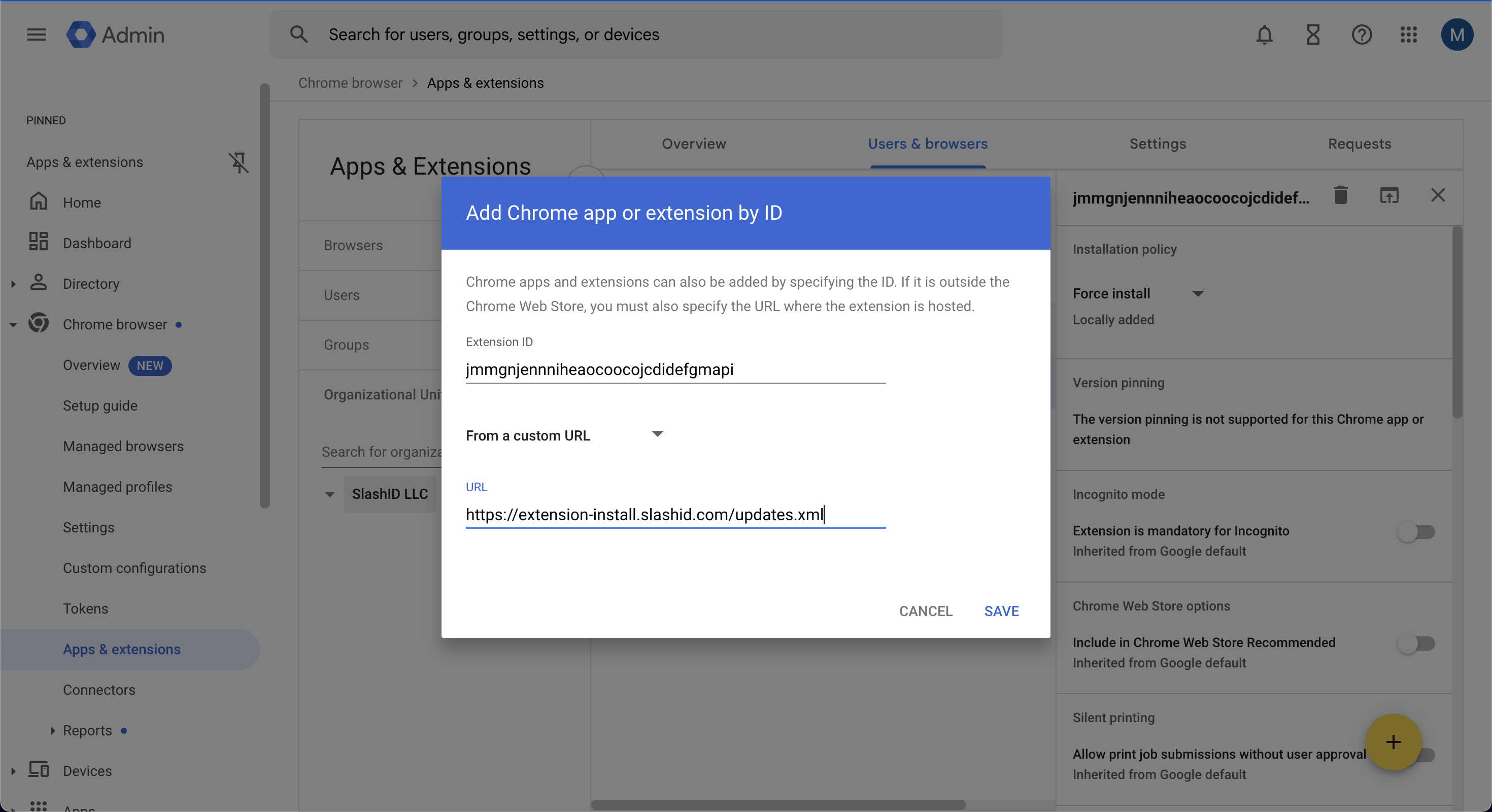
Then in the extension details view ensure it is force installed and upload the configuration as the extension policy. The policy is a JSON object with the keys listed in the managed configuration reference:
{
  "sidEventStreamingToken": "SLASHID_SENSOR_TOKEN",
  "sidSilentOnboarding": true
}
Replace SLASHID_SENSOR_TOKEN with the activation code of your SlashID Sensors data source. sidSilentOnboarding is optional; remove it to keep the standard onboarding flow, or keep it to enable Silent Onboarding.
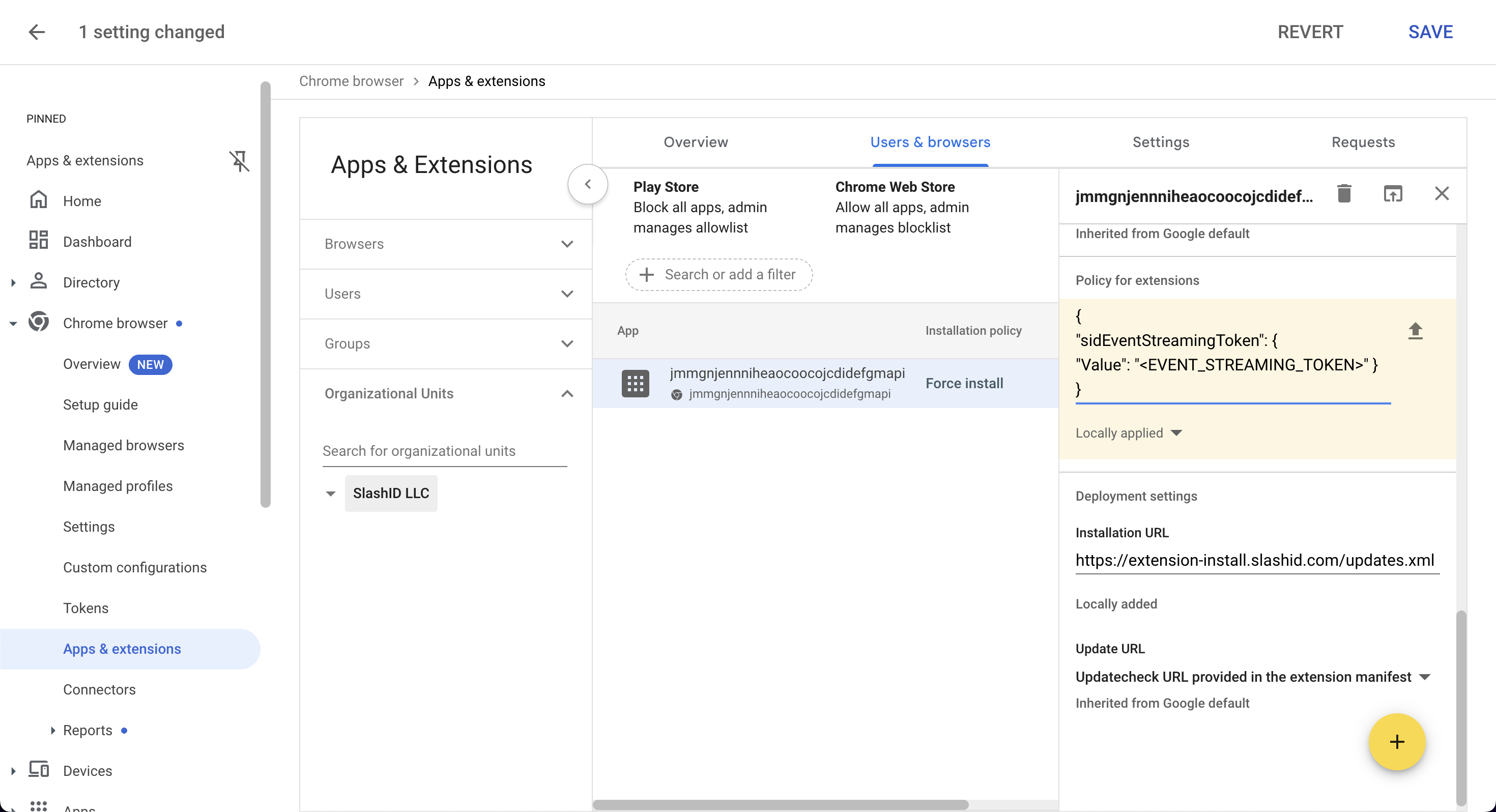
Documentation: Chrome Enterprise - Managing Chrome Extensions
Microsoft Intune
Best for: Organizations using Microsoft Cloud
Deploy the extension from the Microsoft Intune admin center. The setup differs by operating system - follow the guide for your managed devices:
- Microsoft Intune (Windows) — a single Intune Remediation (two PowerShell scripts) writes the managed configuration to the registry and then force-installs the extension.
- Microsoft Intune (macOS) — both the force-install and the token are delivered together in a single custom configuration profile (
.mobileconfig). - Microsoft Intune (iOS) — installed as a managed iOS app, then configured via an App configuration policy.